
This article explains what employee roles are and how to edit them.
Every employee added to the system should have an assigned role. Instructions on how to assign a role to an employee are provided in the article How to Configure an Employee Profile and Permissions.
A role is a predefined set of permissions that enables navigation within the system. These permissions determine both the visibility of specific tabs and the availability of particular options for the employee. Role management and editing can be accessed in the Club Settings > Roles and Permissions section. 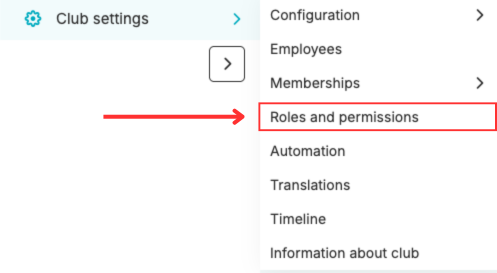
By default, the system includes three predefined roles: Administrator, Club Staff, and Instructor. These roles are automatically created and are fully customizable.
Creating a new role
In the Roles and Permissions section, you can view a list of existing roles. To create a new role, click the plus icon located in the upper-right corner of the screen.
After clicking the icon, a new role creation form will appear. In this section, you can:
1. Enter the name of the new role
2. Select the “Admin” option – enabling this will ensure that if any updates introducing new permissions are added to the system, this role will be automatically updated accordingly
3. Define which permissions should be assigned to the role
4. Review detailed descriptions of each available permission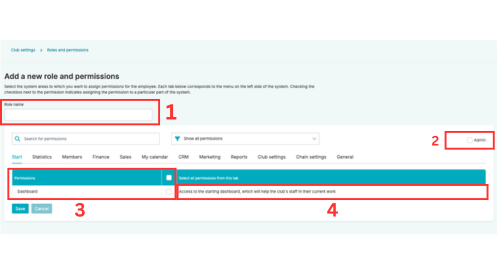
After configuring the desired permissions, save the new role.
Editing a Role
In the Roles and Permissions section, all available roles include icons for managing them:
Icon 1 – create a copy of the role
Icon 2 – edit the existing role
Icon 3 – delete the role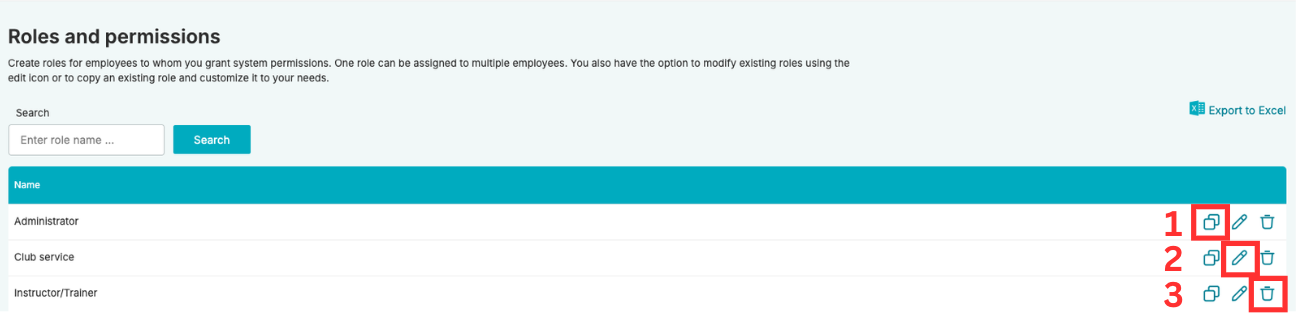
Key Points to Remember:
- A role cannot be deleted if it is currently assigned to an employee
- A single role can be assigned to multiple employees at the same time
- Permissions and features correspond to different areas of employee responsibilities