
You’ll learn what settings can be found in the Club settings > Configuration > Calendar.
Introduce reservation limits for classes, define class types, add types of personal training sessions, and more.
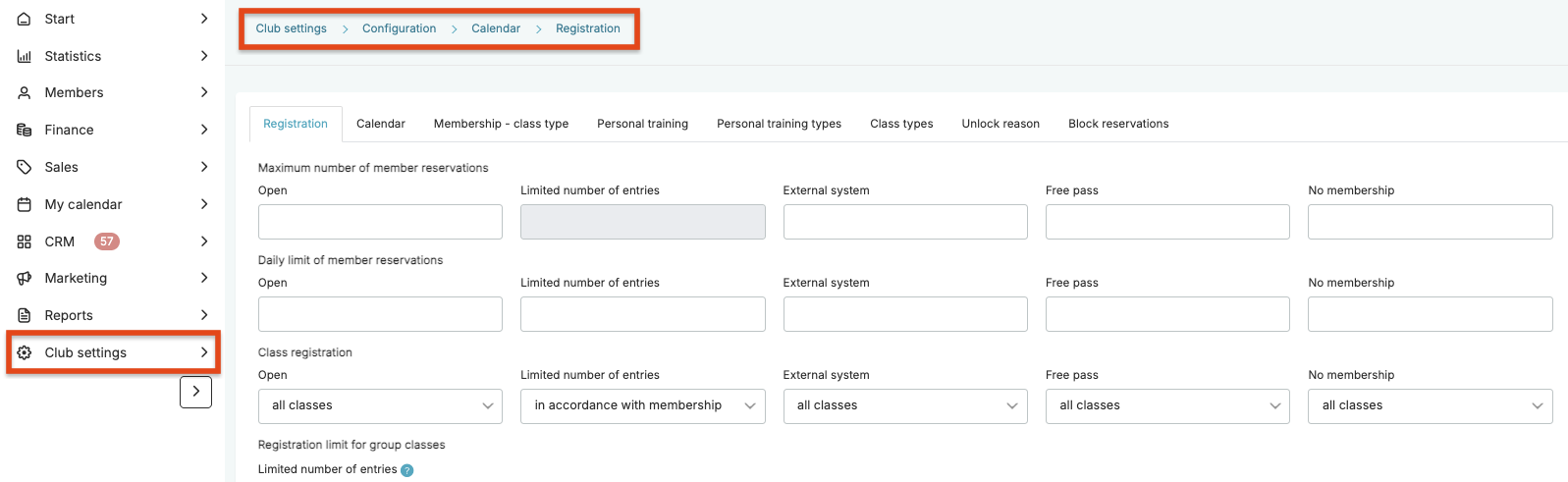
1. Registration
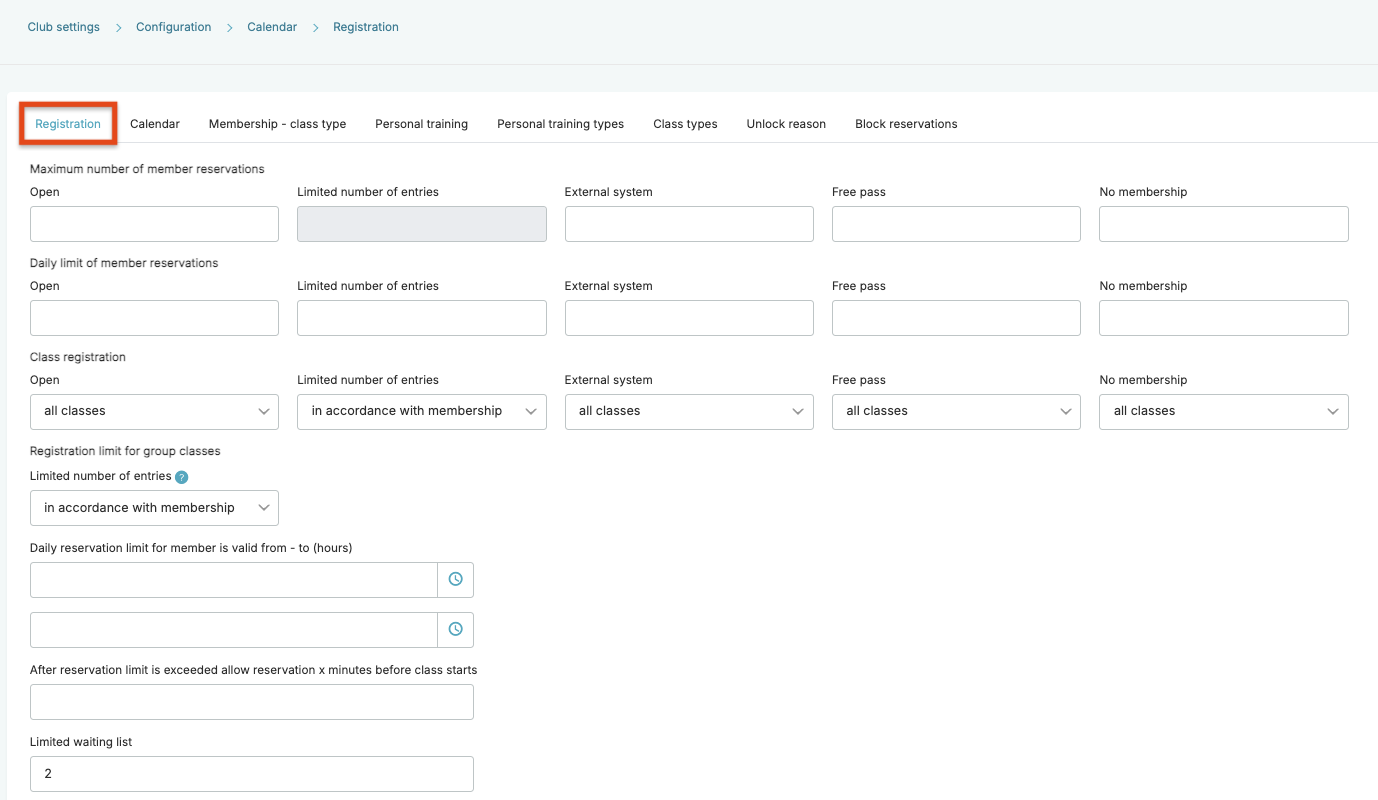
- Maximum number of member reservations – you can set the maximum number of bookings for a given membership type. If you enter 0 in the “No membership” field, it means that a member without a membership will not be able to sign up for classes. The limit is released after the class ends. For example, if the value is set to 1 (one booking) and the member signs up for a class from 1pm to 2pm, the next booking via the Member area will be possible after 2pm. If the limit is exceeded, a message is displayed in the Member area:

- Daily limit of member reservations – use this setting to limit class bookings per day. If you enter the number 1 for a given membership type, it means that the member can sign up for classes only once per day (1 booking on Monday, 1 booking on Tuesday, 1 booking on Wednesday, etc.). If you enter the number 0 in the “No membership” field, a member without a membership will not be able to sing up for classes. If the limit is exceeded and you try to book a class, the following message will be displayed:
- Class registration – you can create courses in the system, i.e. a series of sessions where a member can be enrolled in all classes at once, e.g. a dance course. The Class registration setting is used to determine whether enrollment in a course applies to all sessions at once, to individual classes or if enrollment in a course is not available for a given membership type.
- Registration limit for group classes – specify the booking limit for classes for limited number of entries memberships. There are two options to choose from:
1) all classes – it means that the member can sign up for any number of classes. This setting does not take into account the number of available entries in the membership. When selecting All classes option, the Limited number of entries field in the Maximum number of member reservations section becomes available.
2) in accordance with membership – this option allows the member to sign up only for as many classes as there are available entries in their membership. - Daily reservation limit for member is valid from – to (hours) – select the time range during which the daily reservation applies.
- After reservation limit is exceeded allow reservation x minutes before class starts – decide how many minutes before the class starts, club staff will be allowed to register a member despite the member exceeding the booking limit.
- Limited waiting list – enter the allowed number of people on the class waiting list. This limit applies to all classes with the waiting list enabled.
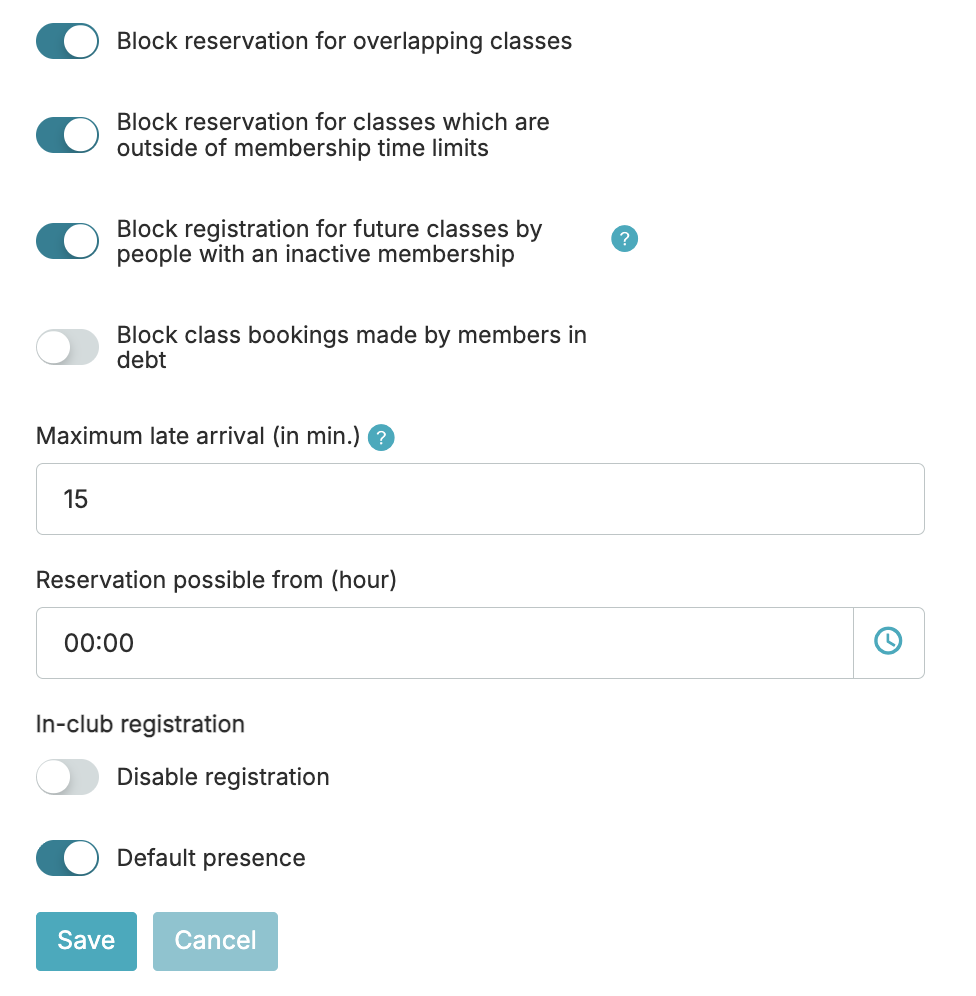
- Block reservation for overlapping classes – enable the toggle if you want to prevent members from signing up for classes that take place at the same time.
- Block reservation for classes which are outside of membership time limits – activate the toggle if members should only be able to sign up for classes during active hours of their membership. This option applies to memberships with time restrictions.
- Block registration for future classes by people with an inactive membership – enable this setting if you want members to be able to sing up for future classes only when they have active (valid) membership. If a member tries to book a class in the Member area, for example on April 10th, but their membership is valid only until April 8th, they will not be able to make a reservation.
- Block class bookings made by members in debt – activate the toggle if members with overdue payments should not be allowed to book classes.
- Maximum late arrival – enter how many minutes late a member can arrive for a class for their attendance to be marked automatically.
- Reservation possible from – set the time from which booking for classes on a given day is possible, for classes with a booking restriction defined in the Class type.
- In-club registration:
1) Disable registration – allows blocking class bookings after entering the club premises.
2) Default presence – if a member signs up for a class after entering the club, they will be marked as present.
2. Calendar
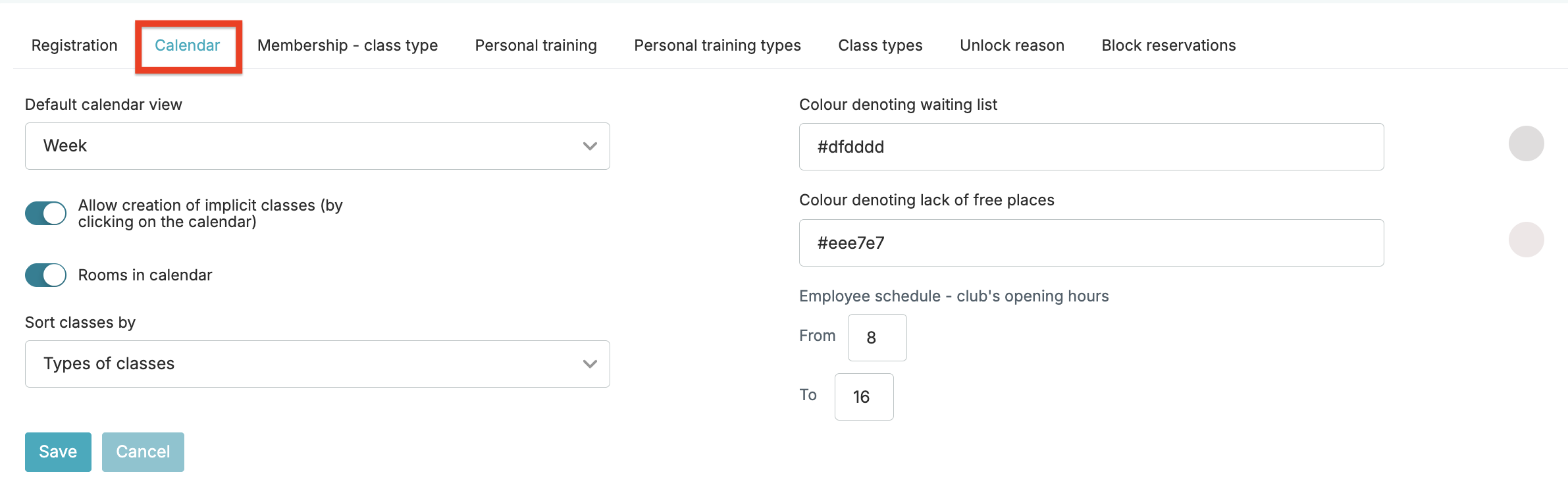
- Default calendar view – choose the calendar view: week, 4 days, day, rooms, line, agenda.
- Allow creation of implicit classes (by clicking on the calendar) – enable the toggle if you want to have a possibility of adding implicit classes in the calendar.
- Rooms in calendar – if you need to assign rooms in the class schedule, activate the toggle. Rooms are available in the tab: My calendar > Rooms.
- Sort classes by – choose how to sort classes: by class types or rooms.
- Colour denoting waiting list – choose the colour that will be used to mark classes in the calendar when a waiting list is available.
- Colour denoting lack of free places – choose the colour that will mark classes in the calendar in the system when the list of available spots for the class is full.
- Employee schedule – the entered data is displayed in the My calendar > Employee schedule tab.
3. Membership – class type
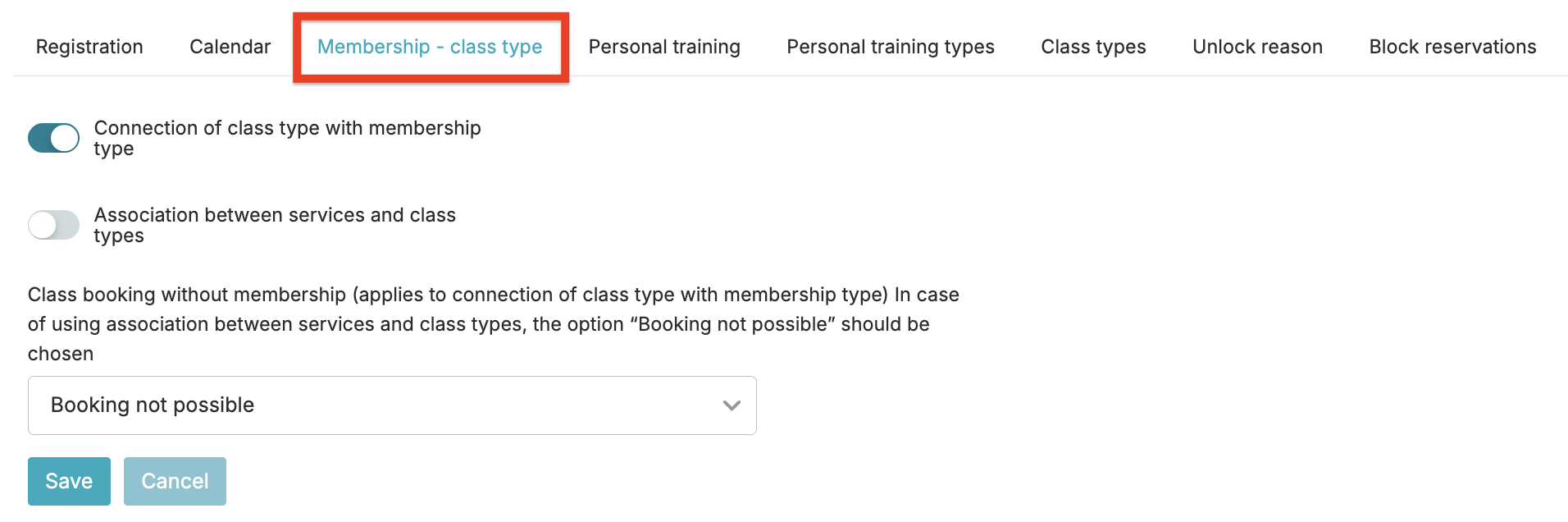
- Connection of class type with membership type – by activating this toggle, you can link a given membership to specific classes – for example, a membership named “Zumba” allows attendance only to Zumba classes.
- Association between services and class types – enable the function to link classes with the service for the membership.
- Class booking without membership – an option related to the association described above. Choose one of the options:
– Booking not possible – the club member will not be able to sign up for the classes without a membership.
– Booking possible if new membership is signed – this options works for registrations made by club staff – when a club member is signed up without the membership that is linked to the class, the system automatically adds a membership to the member’s profile.
4. Personal training
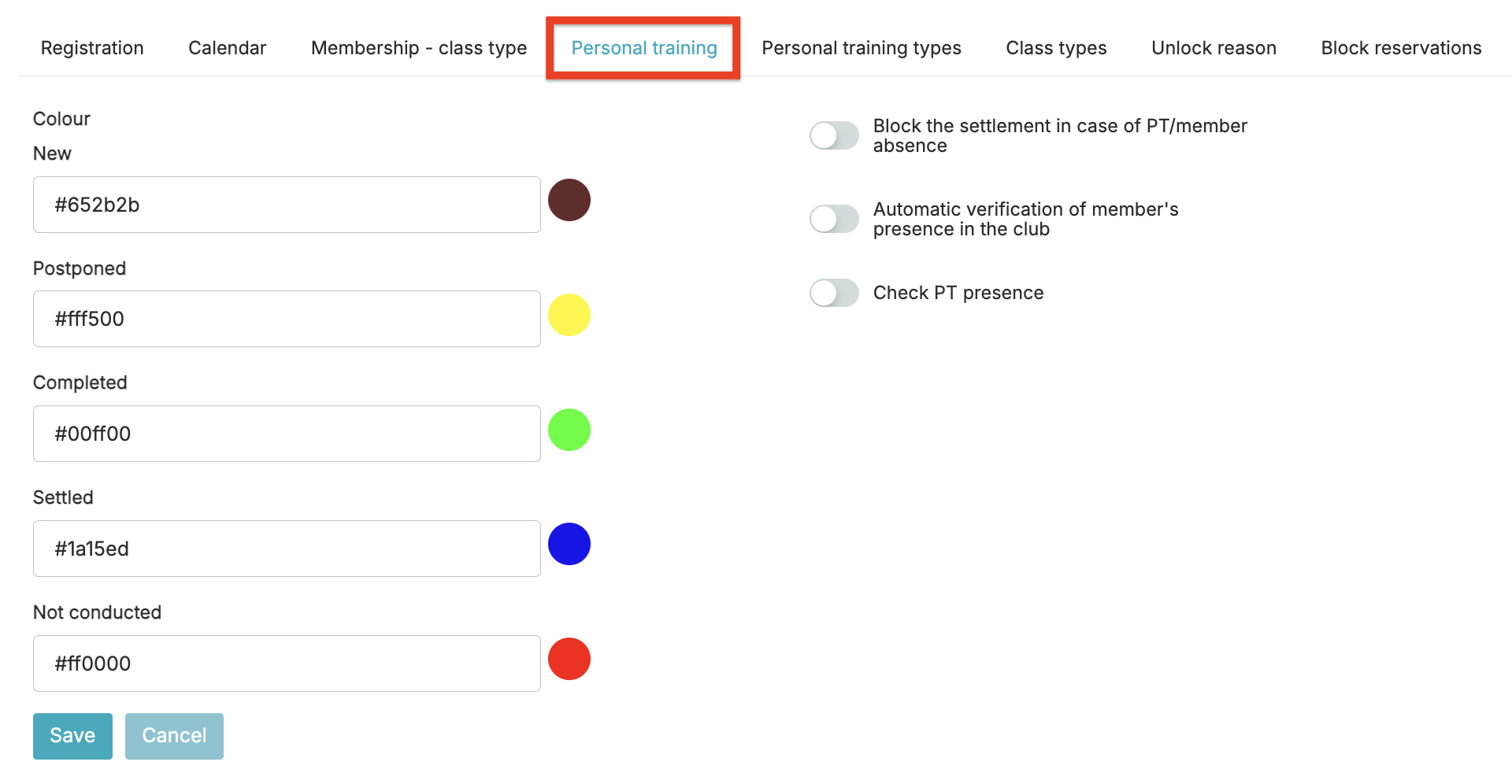
- Colour – define the colours of personal training statuses. These colours are visible in the tab My calendar > PT.
- Block the settlement in case of PT/member absence – when enabled, this option prevents the settlement of a personal training session if not all participants are present.
- Automatic verification of member’s presence in the club – when the toggle is active, you must also fill in the field Acceptable lateness and Acceptable entry ahead of time. If the member enters the club and their entry is registered, their attendance for the personal training session will be marked.
- Check PT presence – activate the toggle if you want to verify whether the trainer was actually present at the club. In this case, the trainer must register an entry. The trainer’s attendance is visible in every scheduled personal training session in the PT timetable.
5. Personal training types
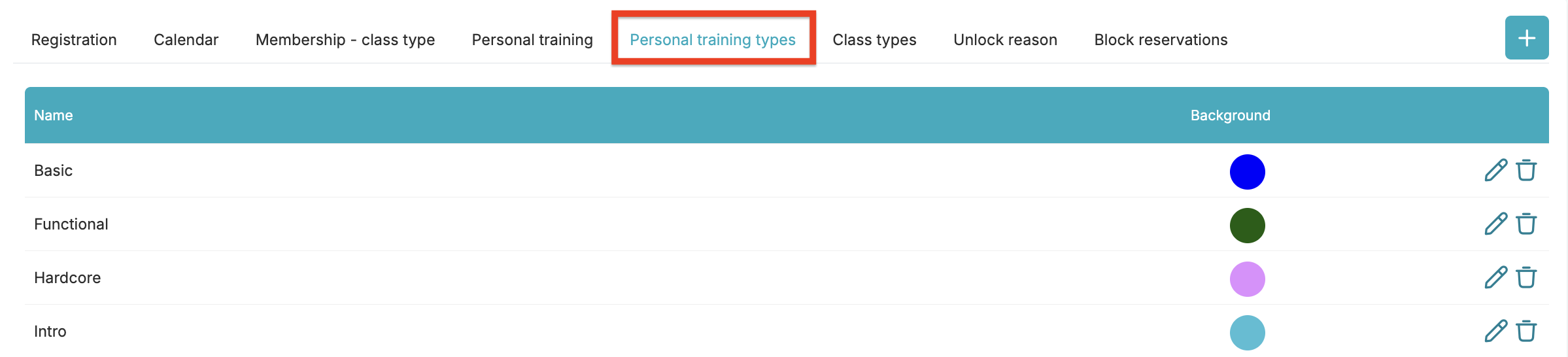
Add using a plus icon the types of personal trainings that will be available for selection when adding sessions in the My calendar > PT tab.
6. Class types
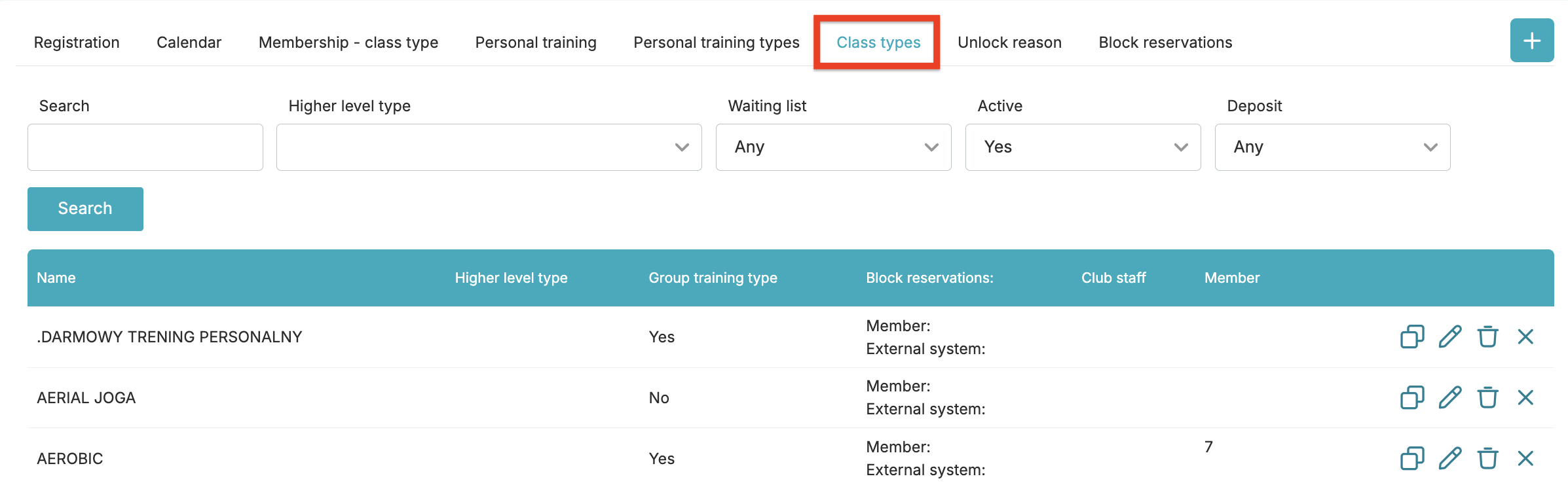
Add by clicking the plus icon the class types. Class types are necessary in order to create calendar.
Remember that after creating a class type, you can copy it along with its settings by using a double-page icon. This allows you to create the class types faster.
7. Unlock reason
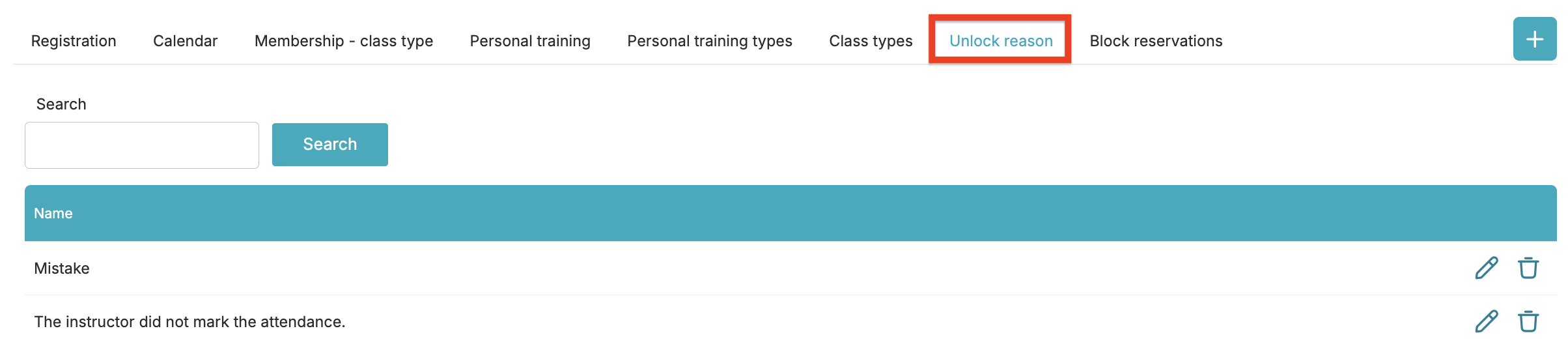
Define, using a plus icon, the reasons that can be selected when removing a booking block from a member’s profile. Providing a reason is mandatory.
8. Block reservations
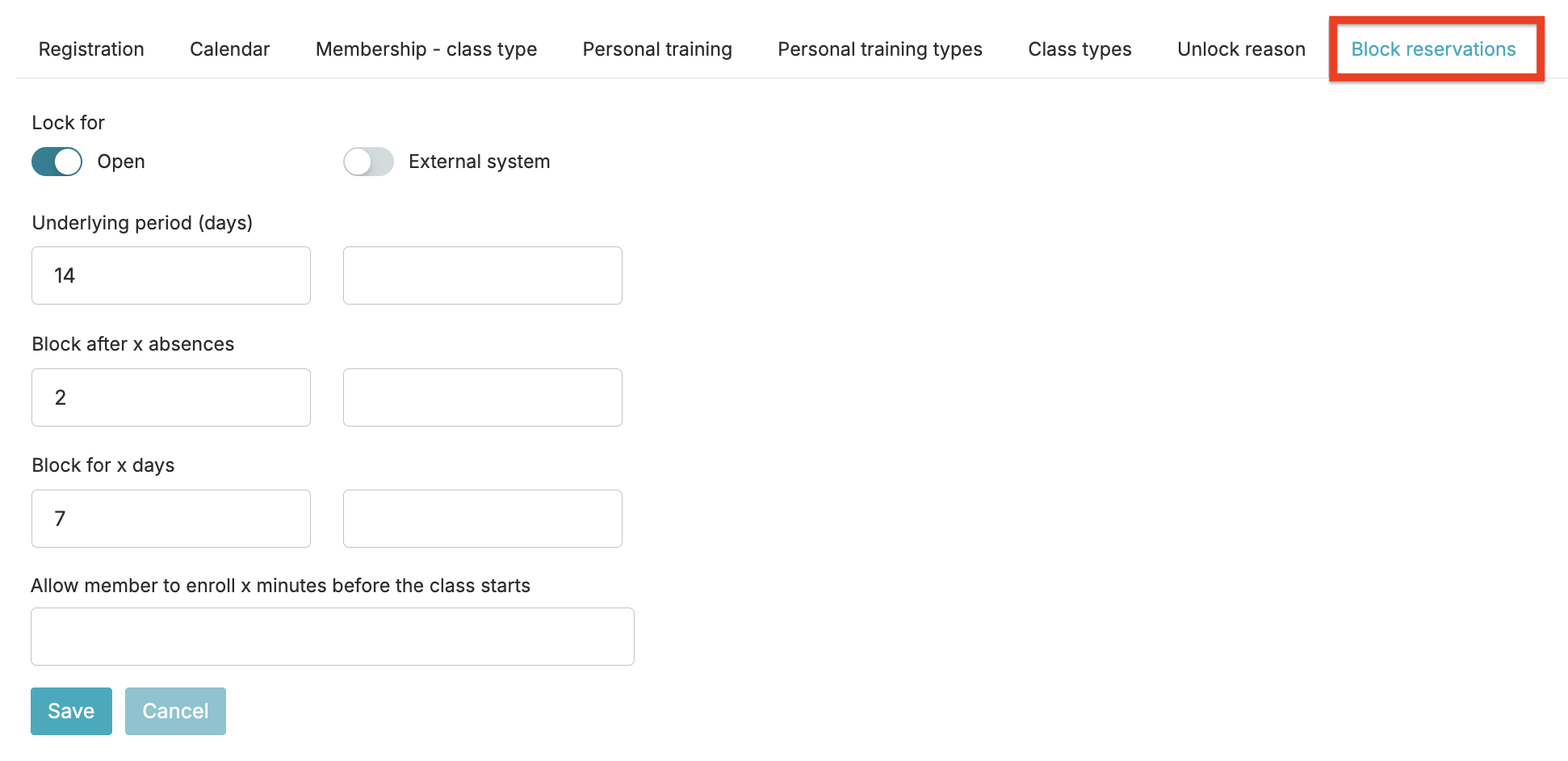
Booking restrictions can be applied to open and indefinite memberships. You can also use it for memberships with external system payment form (External system toggle).
Fill in the fields Underlying period, Block after x absences and Block for x days. Once configured, the system will automatically apply booking restrictions.
Booking restrictions are visible in Reports > Classes > Registration blocks.